Presentations
From sorting the material and the structure to an editable deck and speaker notes.

Release your creativity anywhere.Capture every spark of inspiration.
Send one message from your phone and your computer at home or at work gets started. Finished slides, spreadsheets and documents come straight back to your phone.
Three steps
Ask on your phone or computer, the way you would message a colleague.
The message goes to the computer or cloud workspace this conversation is connected to, and you can follow along from your phone.
Replies and finished files land in the same conversation, ready on phone and computer.

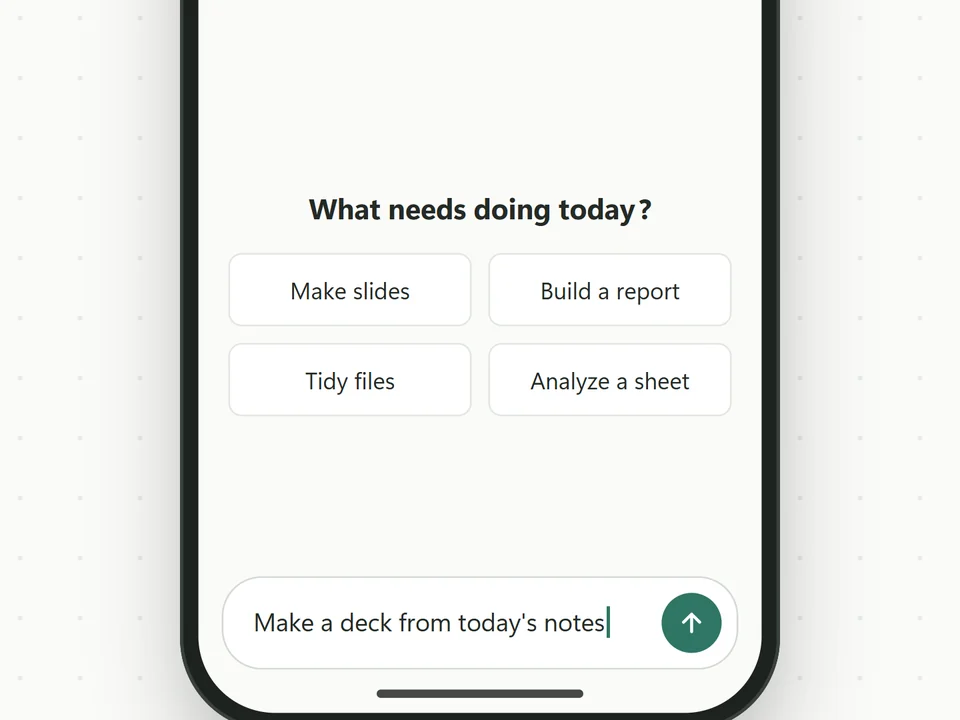
Send the notes from the hallway. By the time you're back at your seat, the minutes are done.

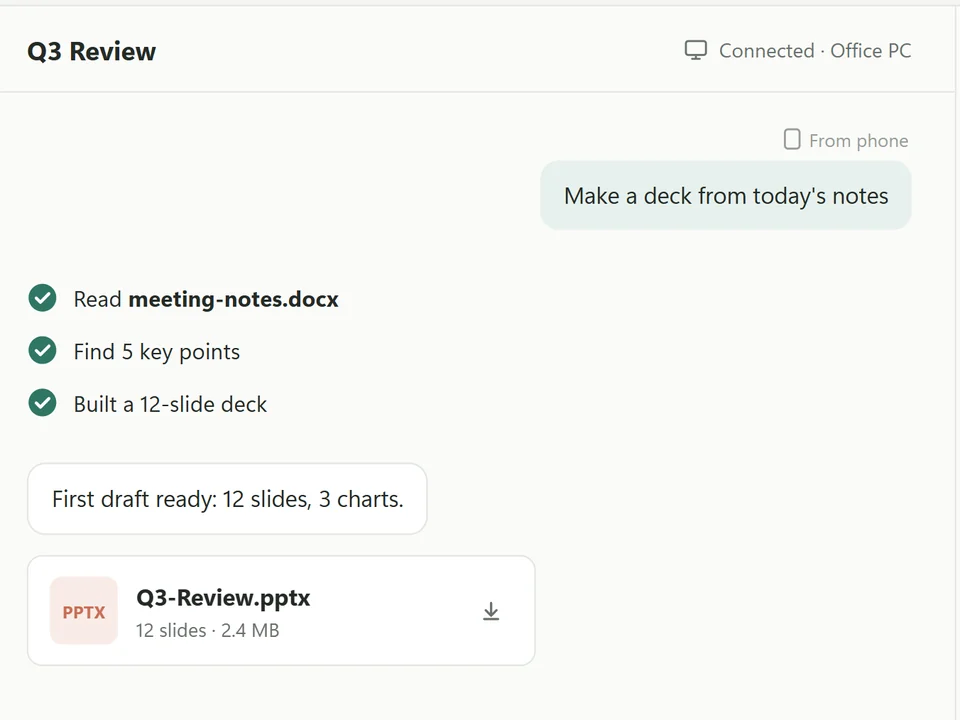
An idea at the café: let the computer build a first draft, then polish it at home tonight.

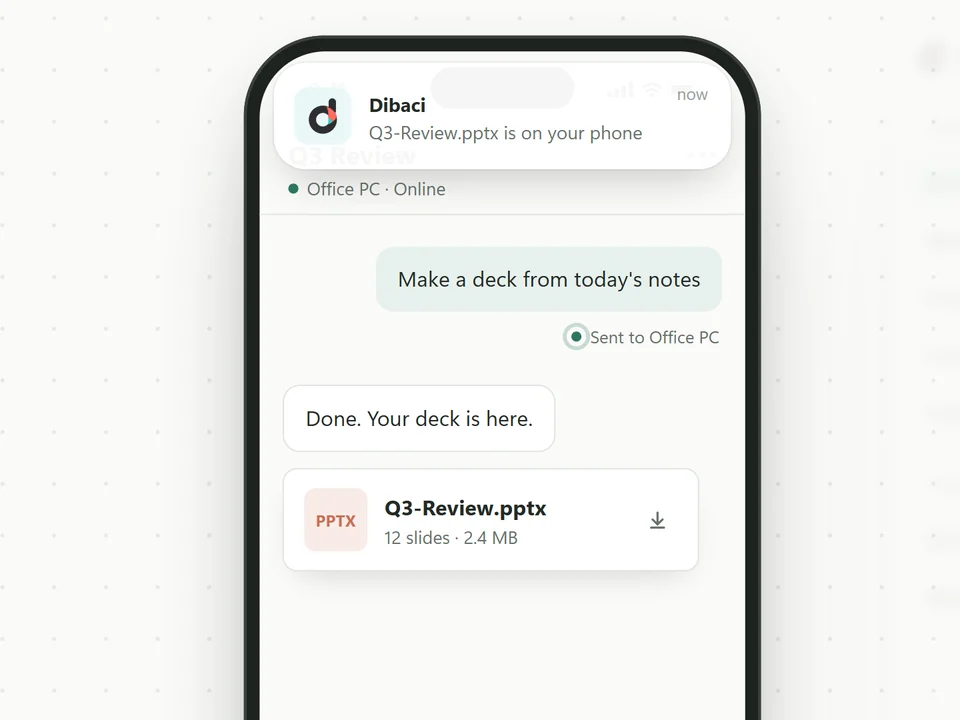
Home in the evening, and the report you asked for is already in the chat, ready to read or forward.
You ask from your phone and Dibaci does the work on the computer you connected: reading files, editing spreadsheets, running code. Conversations, progress and attachments follow your account, so your phone and computer always show the same thing.
Use Dibaci's built-in models, or switch to Codex or your own API in the message box. Your own API keys stay on the device where you set them up.
From sorting the material and the structure to an editable deck and speaker notes.
Cleans up the data, adds formulas and charts, and hands back a workbook you can keep editing.
Turns meetings, research and project material into documents where every conclusion has a source.
Changes and tests code in the project on your computer, then sends back the build or project package.
Skill marketplace
Type # in the message box to pick a skill and Dibaci follows a proven set of steps, so results come out more consistent. Official skills are free.
Turns transcripts and notes into decisions, to-dos, owners and due dates.
Official · FreeBuilds an editable deck and checks the layout before handing it over.
Official · FreeResearches a topic and writes it up, with sources and limits for every conclusion.
Official · FreePulls out key clauses and gaps, and marks what a person should double-check.
Official · FreeEverything travels over HTTPS. Where your data goes depends on the model you use and where the work runs, and the security page covers each case.
Read the detailsDibaci is invite-only for now. To sign up, choose Sign up with invite on the app's sign-in screen and enter your email, a password and your invite code. It can't be bought yet. See pricing and plans →
Dibaci is in an invite-only beta, so you need an invite code. After installing the app, choose Sign up with invite on the sign-in screen and enter your email, a password and the code. You're signed in right away.
Not for ordinary chats. If a conversation asks your computer to do the work, that computer needs to be on and online. SVIP cloud development works even when your computer is off.
Sign in with the same Dibaci account on both. There's nothing to scan or pair.
Yes. The key stays on the device where you set it up, is never uploaded to Dibaci's servers, and requests go straight from that device to the model provider.
Skill content lives on Dibaci's servers and only works with Dibaci's built-in models, so it never gets sent to a third party.
Into the conversation where you asked for them. You can open them on your phone or computer, and images preview right away.
Delete it in the app's account settings or on the deletion page of this website. The account is disabled right away, and cloud data is normally deleted within 30 days.
Download Dibaci and sign in with the same account on your phone and computer.
Download Dibaci